Publishing Profiles: သင့် channel များ စုစည်းခြင်း
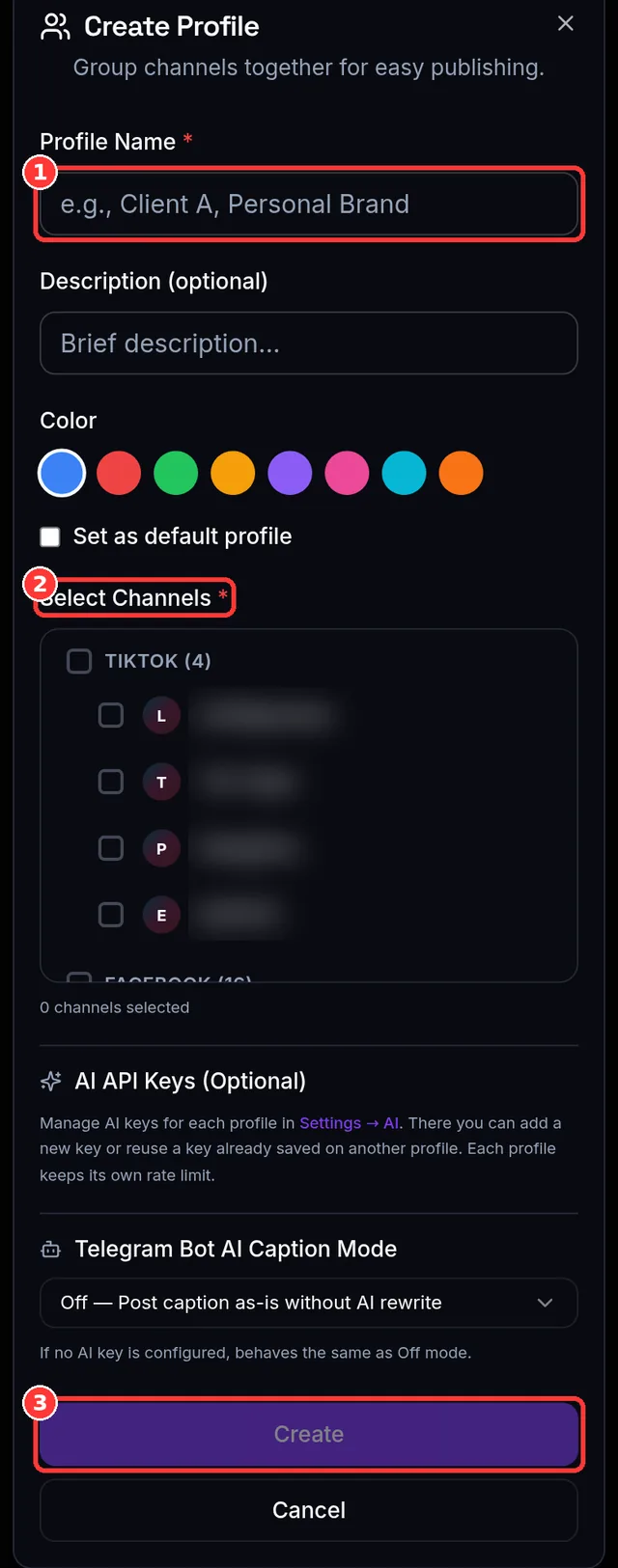
Profile ဆိုတာ ဘာလဲ
Profile တစ်ခုက ဒါတွေ စုစည်းထားတာပါ:
- Channel set တစ်ခု — ဥပမာ "ကျွန်တော့် channel အားလုံး"၊ ဒါမှမဟုတ် "Brand A သာ"၊ ဒါမှမဟုတ် "Instagram + TikTok ပဲ"။
- Per-platform default settings — သင့် ပုံမှန် YouTube privacy, TikTok options စသဖြင့် — profile load လုပ်ရင် ကြိုတင်ချိန်ညှိပြီးသား ရောက်လာအောင်။
- Optional name, အရောင်၊ icon — profile တွေ တစ်ချက်ကြည့်နဲ့ ခွဲခြားနိုင်ဖို့။
Profile တွေက နေရာ ၂ ခုမှာ အရေးပါတယ်: composer မှာ တစ်ခု load လုပ်ရင် channel selection ချက်ချင်း ဖြည့်ပေးတယ်၊ ပြီးတော့ သင့် Telegram bot က သင်ခန်းစာ ၅ မှာ ချိတ်ခဲ့တဲ့ profile ဆီ တိတိကျကျ ပို့စ်တင်ပါတယ်။
Profile ဘယ်နှစ်ခု ရလဲ
| Plan | Free | Creator | Pro | Agency |
|---|---|---|---|---|
| Publishing profiles | 1 | 2 | အကန့်အသတ်မရှိ | အကန့်အသတ်မရှိ |
Free plan မှာ profile တစ်ခု ရပါတယ် — "channel အားလုံး" အတွက် ကွက်တိပါ။ Brand/client တွေ သီးခြားစီမံတာက profile များများ (နဲ့ paid plan) တန်ဖိုးရှိလာတဲ့နေရာပါ။ Plan ခွင့်ပြုတာထက် များများ ဖန်တီးဖို့ ကြိုးစားရင် ဒါ မြင်ရပါမယ်: Your free plan allows 1 publishing profile. Upgrade to create more.
Profile တစ်ခု ဖန်တီးခြင်း
- Channels မှာ Create Profile ဖွင့်ပါ (Dashboard ရဲ့ Get-Started ကတ်ကလည်း ဒီကို link ချိတ်ပေးထားပါတယ်)။
- name (မဖြစ်မနေ) ပေးပြီး ပါဝင်စေချင်တဲ့ channels (အနည်းဆုံး တစ်ခု) ရွေးပါ။
- Optional အနေနဲ့ အရောင်/icon သတ်မှတ်ပြီး default အဖြစ် သတ်မှတ်ပါ — default profile က composer မှာ အလိုအလျောက် load ဖြစ်ပါတယ်။
- Save ပါ။ အခု composer ရဲ့ profile picker မှာရော Telegram bot အတွက် link target အဖြစ်ရော ရနိုင်ပါပြီ။
Composer မှာ profile သုံးခြင်း
- Composer ဖွင့်ပြီး profile picker ("Load a saved profile…") သုံးပါ။ Profile တစ်ခု ရွေးရင် သူ့ channel တွေ ရွေးပြီး သိမ်းထားတဲ့ platform settings တွေ တစ်ခါတည်း သက်ရောက်ပါတယ်။
- Profile မသုံးဘဲ တစ်ခါသုံး ပို့စ်အတွက် channel တွေ လက်နဲ့ရွေးချင်ရင် All Channels ရွေးပါ။
- Profile တစ်ခုစီ ဘေးမှာ channel count မြင်ရပါမယ်။ "(2/3)" လို လိမ္မော်ရောင် ပြရင် — profile ရဲ့ channel တစ်ခုကို သိမ်းပြီးကတည်းက disconnect လုပ်ခဲ့လို့ပါ — profile က ကျန်တဲ့ channel တွေနဲ့ ဆက်အလုပ်လုပ်ပါတယ်; count ရှင်းအောင် ပြန်save ပါ။
Profile များ ပြင်ဆင် & သန့်ရှင်းအောင် ထားခြင်း
- Profile ရဲ့ channels, name, အရောင်၊ default flag ကို Channels ကနေ အချိန်မရွေး ပြင်လို့ရပါတယ်။
- Composer မှာ profile load ထားစဉ် platform settings save လုပ်ရင် အဲဒီ profile ရဲ့ defaults ကို update လုပ်ပေးလို့ သင့် preference တွေ တည်နေပါတယ်။
- Channel တစ်ခု disconnect လုပ်ရင် သူ့ကို သုံးထားတဲ့ profile တိုင်းကနေ အလိုအလျောက် ဖယ်ရှားပြီး — channel သုည ကျန်သွားတဲ့ profile ကို ဖျက်ပါတယ် (profile တစ်ခုမှာ channel အနည်းဆုံး တစ်ခု အမြဲ ရှိရပါမယ်)။
မျှော်မှန်းရလဒ်
Profile အနည်းဆုံး တစ်ခု — အကောင်းဆုံးက default အဖြစ်သတ်မှတ်ထား — ရှိပြီး composer ဖွင့်ရင် သူ့ channel တွေ ကြိုရွေးပေးပါတယ်။ သင်ခန်းစာ ၅ မှာ Telegram bot ချိတ်ခဲ့ရင် အဲဒါလည်း profile တစ်ခုဆီ ချိန်ထားပြီးသားပါ။
အဖြစ်များတဲ့ အမှားများ
- Channel မပါဘဲ profile save ဖို့ ကြိုးစားခြင်း — အနည်းဆုံး တစ်ခု လိုပါတယ်။
- Profile က "(1/2)" ဘာလို့ပြလဲ တွေးခြင်း — သူ့ထဲက channel တစ်ခု disconnect ဖြစ်သွားလို့ပါ; ပြန်save ဒါမှမဟုတ် channel ပြန်ချိတ်ပါ။
- Free မှာ "personal" နဲ့ "client" profile သီးခြား ထားဖို့ ကြိုးစားခြင်း — profile တစ်ခု ရပါတယ်; များများအတွက် upgrade လုပ်ပါ။
- Composer က လက်နဲ့ရွေးထားတဲ့ channel တွေ မှတ်ထားမယ်လို့ မျှော်လင့်ခြင်း — တစ်ခါသုံးအတွက် "All Channels" သုံးပါ၊ ဒါမှမဟုတ် ပြန်သုံးဖို့ profile အဖြစ် သိမ်းပါ။
📱 ဖုန်းအတွက် မှတ်ချက်: profile picker က composer ရဲ့ အပေါ်ဆုံးမှာ ရှိပါတယ်; channel အားလုံး scroll မဆွဲဘဲ channel set ပြောင်းဖို့ tap လုပ်ပါ။
အခုအထိ အားလုံး setup ပါ။ အခု တကယ် ပို့စ်တင်ပါမယ် — compatibility စစ်ဆေးမှု၊ confirm အဆင့်နဲ့ ရလဒ်ဖတ်နည်းနဲ့အတူ။