Create your account & sign in
Before you start
- A real email inbox you can open right now — temporary/disposable email addresses are blocked at signup, and you'll need the verification email.
- Or a Google account, if you prefer one-click sign-in (no email verification needed).
Option A — Sign up with email & password
- Open socialautoupload.com and choose Sign Up.
- Fill in the form:
- Full name — optional; shown in your profile, editable later.
- Email — see the warning above.
- Password — must satisfy all five rules, and a live checklist under the field shows your progress: 8–100 characters · one uppercase letter · one lowercase letter · one number · one special character.
- Confirm password — must match, or you'll see Passwords don't match.
- Creating an account means you agree to the Terms of Service and Privacy Policy (linked under the button — there is no separate checkbox).
- Press Sign Up. You'll land on a "Check your email" screen.
Verify your email — two ways, same email
One email arrives containing both a verification link and a 6-digit code. Either works; both expire after 24 hours:
- Link: click it — done.
- Code: type the 6 digits on the verification screen. Useful when your email app breaks links (common in some mobile clients).
Code rules worth knowing: after 5 wrong attempts the code locks — Too many incorrect attempts. Please request a new code. An old code shows This code has expired. Please request a new one. Until you verify, the app keeps redirecting you to the verification screen and publishing features stay locked.
Option B — Sign in with Google
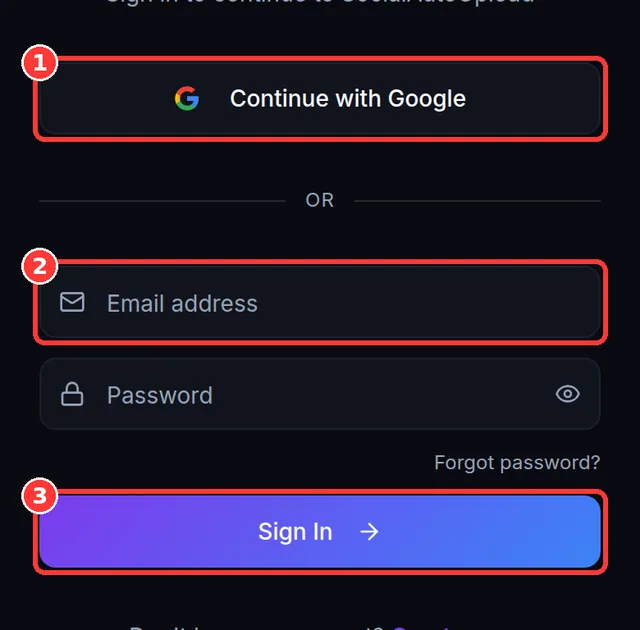
- Choose Continue with Google on the sign-in page.
- Pick your Google account (the chooser always appears, so you can select the right one).
- That's it — Google accounts are already verified; you land straight on the Dashboard with a Free plan.
Signing in day to day
- Wrong credentials always show the same message — Invalid email or password — on purpose, so nobody can probe which emails have accounts.
- 5 failed attempts within 10 minutes temporarily blocks your network address for ~30 minutes: Too many failed attempts. Your IP has been temporarily blocked. Wait it out — or use Forgot password instead of guessing.
- Signing in from a network the app hasn't seen you use in the last 90 days triggers a new-device email notification. That's normal; if it wasn't you, change your password immediately.
- You stay signed in on a device for up to 30 days without re-entering your password.
Sessions, sign-out & passwords — the three surprises
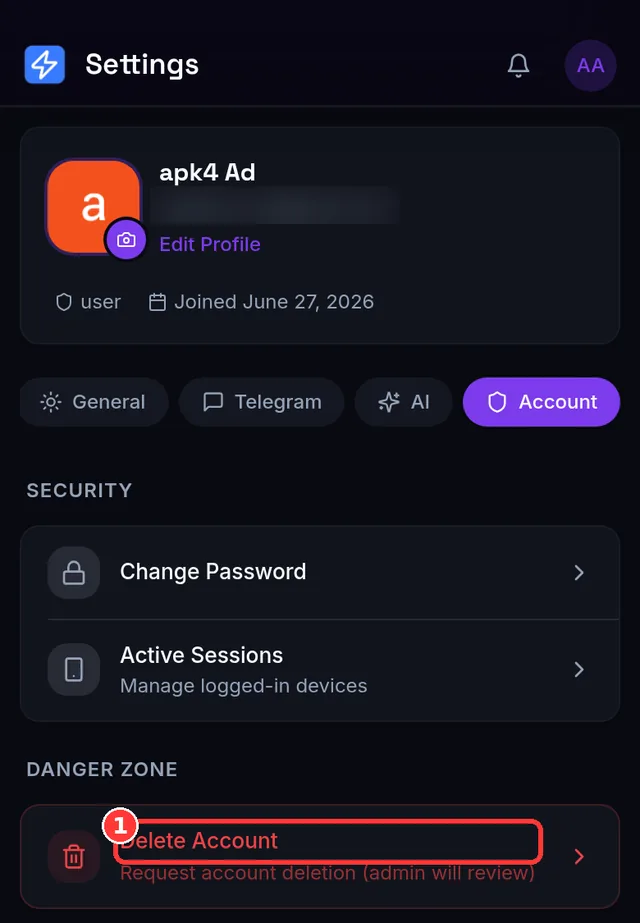
- Sign Out signs you out everywhere. Pressing Sign Out (Settings, bottom) ends your session on every device, not just the one in your hand.
- Changing or resetting your password also signs out your other devices. Only the device where you changed it stays signed in (after a reset, you sign in fresh everywhere). This is a security feature — if you suspect someone has your password, changing it kicks them out.
- You can see and revoke devices yourself. Settings → Account → Active Sessions lists each signed-in device (browser, system, last-active time) with per-device Revoke and a Revoke All Others button.
Forgot your password?
- On the sign-in page choose Forgot password, enter your email.
- You'll always see a neutral confirmation; if the account exists, a reset link arrives — valid for 1 hour.
- Set a new password (same five rules), then sign in again on all devices.
Expected result
You're on the Dashboard, your email shows as verified (no more redirect to the verification screen), and a Get Started checklist card is waiting with step 1: Connect a channel. That's Lessons 3–5.
Common mistakes
- Signing up with a throwaway email to "test" — blocked with This email domain is not allowed. Temporary or disposable email addresses are blocked — please use a permanent email.
- Creating several accounts from one connection — signups are limited to 3 per network per day: Too many accounts created from this network today. Please try again tomorrow.
- Hammering Resend — it's rate-limited (5 per 15 minutes); use the spam folder check first.
- Signing out on a shared computer and assuming your phone stays signed in — it doesn't (surprise #1 above).
Troubleshooting (quick table)
| You see… | Why | Do this |
|---|---|---|
| Registration is currently closed. Contact the administrator for an invitation. | Invite-only mode is switched on | Contact support (Telegram @paingthucom) |
| Your account is pending admin approval… | Approval mode is on; a human reviews signups | Wait for the approval email |
| Your account has been suspended… | Account action by an administrator | Contact support if you believe it's a mistake |
| Too many login attempts. Please try again later. | More than 10 sign-in tries in a minute from your network | Pause a minute, then retry |
| Verification email never arrives | Spam filtering, or a typo in your address | Check spam → Resend (60 s) → if the address was mistyped, sign up again with the correct one |
Deeper sign-in problems are covered in Lesson 18.5.
📱 Mobile note: the flow is identical on a phone; the verification email's 6-digit code is often easier than the link on mobile.
Before connecting channels, two minutes on how credits work will save you surprises later.