Start here: what SocialAutoUpload is — and what to expect
1. What SocialAutoUpload does
SocialAutoUpload (socialautoupload.com) lets you create a post once and publish it — immediately or on a schedule — to up to five platforms at the same time:
Facebook Pages · Instagram (Business/Creator) · YouTube · TikTok · Telegram
You can work two ways:
- Web app — compose with media, AI caption help, per-platform settings, scheduling, and a full post history.
- Telegram bot — connect your own bot once, then publish to every platform just by sending a photo, video, or text to that bot from your phone. No commands required.
Around that core, the app gives you: scheduling with a calendar, importing your own media from a link, AI caption/hashtag/title generation using your own AI key, per-channel publish results with retry, performance analytics, and usage tracking for your plan's credits.
2. Who it's for
- Solo creators who post the same content to several platforms and are tired of uploading five times.
- Telegram-first users who live in Telegram and want "send it to my bot → it's everywhere" publishing.
- Small agencies managing several brands — Publishing Profiles group channels per brand, and paid plans remove the channel cap.
- Myanmar and Southeast-Asian creators — support is human and fast on Telegram/WhatsApp, and this guide is available in English and Burmese (မြန်မာ).
3. Platform capabilities at a glance
Here's what you can publish where. Each platform also has a few ground rules of its own — the app works within them, and knowing them up front makes everything smoother:
| Platform | Can publish | Key requirement | Delete from the app? | Worth knowing |
|---|---|---|---|---|
| Text, photo, video, Reel, multi-photo album | You need a Facebook Page, and your personal account must hold a role on that Page (admin/editor/moderator). Losing the role is the single most common publishing failure. | ✓ | Short clips (≤ 90 s) can publish as Facebook Reels. | |
| Photo, video (as Reel), carousel, Story | Business or Creator account linked to a Facebook Page. Personal Instagram accounts can never connect — this is Meta's rule. | — (remove in the IG app) | No text-only posts. Videos publish as Reels — up to 15 minutes and 300 MB (longer is auto-trimmed). Stories currently publish via the Telegram bot's /story command only. |
|
| YouTube | Video, Short | A YouTube channel on your Google account. | ✓ | Videos ≤ 60 s publish as Shorts automatically. Daily upload quota is shared app-wide and resets at midnight Pacific Time. |
| TikTok | Video only | A one-tap content declaration (checkbox) is required before every post — TikTok policy. | — (remove in the TikTok app) | The public link to your published video can take a minute or two to appear. |
| Telegram | Text, photo, video, album | Your own bot (free, via @BotFather) added as admin to your channel or group. | ◐ within 48 h only | Large videos are fine — the app's full 1 GB upload limit applies to Telegram too. |
4. Five expectations to set before you start
Expectation 1 — 💳 Publishing costs credits, per account
1 credit = one successful publish to one connected account. One post sent to Facebook + Instagram + YouTube + TikTok uses 4 credits. Failed attempts cost nothing, and retrying a partly-failed post never double-charges. Every plan (including Free) includes monthly credits that reset on the 1st. AI features are free — they never use credits.
Expectation 2 — 🗑 Published media is not stored
Expectation 3 — Upgrades are activated by a human
There is no card checkout. When you outgrow the Free plan, you message us on Telegram (@paingthucom) or WhatsApp (+66 91 333 7003) with your account email, and your plan is switched on personally — usually within a few hours. Current plans and limits are always at /pricing.
Expectation 4 — 🔒 Platform connections expire and need care
Social platforms hand out time-limited access. The app renews it automatically in the background, but sometimes a platform demands that you reconnect (password change, permission change, platform policy). When that happens the channel shows a red "Needs reconnect" badge and posts to it are skipped until you reconnect — one click, no data lost. Checking your Channels page occasionally is part of using the product.
Expectation 5 — The app speaks English; the guides speak both
The interface, buttons, and error messages are English-only for now. This guide exists in English and Burmese (မြန်မာ) — error messages are always quoted in English exactly as you'll see them, so you can match them on screen.
5. The app at a glance
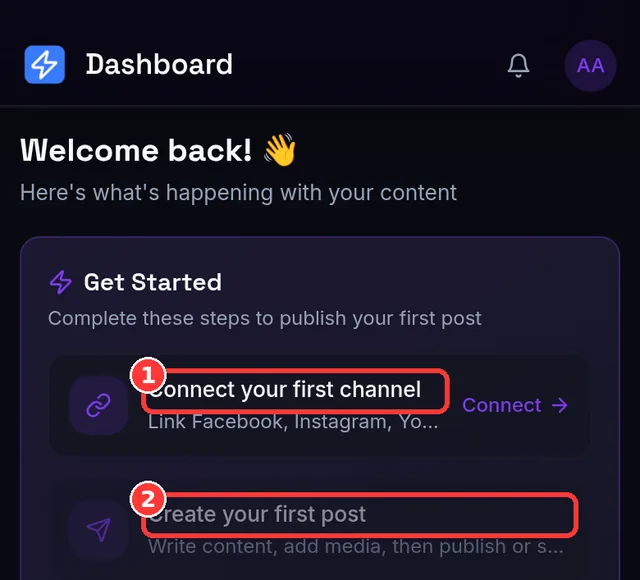
- Dashboard — your numbers, usage/credits panel, and a Get-Started checklist for new accounts.
- Create (Composer) — write once, pick channels, attach media, publish or schedule.
- Posts — everything you've made, filterable, with per-platform results and retry.
- Channels — connect/disconnect platforms, Publishing Profiles, connection health.
- Scheduler — calendar of upcoming posts.
- Analytics — publishing success rates, plus full YouTube statistics.
- Settings — profile, AI keys, security, plan & usage, support links.
📱 On mobile, the same items live in the bottom navigation bar. Everything in this guide works on a phone; the few desktop-only conveniences are flagged where they appear.
Ctrl K (or ⌘ K on Mac) anywhere in the app to open a command palette that jumps to any page or recent post. More shortcuts in Lesson 19.6. And, in fairness — what we don't do (yet)
So you can decide with complete information, a few things SocialAutoUpload deliberately doesn't offer today:
- Team seats — one account is designed for one operator; there are no shared workspaces or member roles yet. (The Agency plan raises limits, not seats.)
- Long-term media storage — it's a publisher, not an archive (Expectation 2).
- Engagement analytics beyond YouTube — full views/likes/watch-time analytics exist for YouTube; other platforms show publishing telemetry.
- A public developer API.
- Publishing to X (Twitter), Pinterest, LinkedIn… — those work as import sources (pull media from them), not as destinations.
If none of these are blockers for you, you're in exactly the right place — let's get you set up.
Common mistakes at this stage
- Trying to connect a personal Instagram account — it must be Business/Creator, linked to a Facebook Page (Lesson 3 walks through it).
- Deleting your original video after publishing, assuming the app keeps a copy — it doesn't (Expectation 2).
- Signing up with a temporary/disposable email — these are blocked; use a real inbox, you'll need the verification email.
You'll register (or use Google), verify your email by link or 6-digit code, and learn how sessions and passwords behave.