AI captions, hashtags & titles
How AI works here — and why it's free
AI in SocialAutoUpload uses your own API key from an AI provider. Because the AI runs on your key (not ours), it costs us nothing — so we don't charge for it: AI never uses publish credits, on any plan. The trade is that you supply the key; without one, the AI buttons simply prompt you to add it.
Three providers are supported — pick whichever you have or prefer:
| Provider | Models available in the app |
|---|---|
| Google Gemini | gemini-2.5-flash (recommended), gemini-2.5-flash-lite (fastest/cheapest), gemini-2.5-pro (most advanced) |
| OpenAI | gpt-4o, gpt-4o-mini (recommended), gpt-4.5-preview |
| DeepSeek | deepseek-chat (recommended), deepseek-reasoner (thinking mode) |
Step 1 — Add your key in Settings
- Get an API key from your chosen provider's website (Google AI Studio for Gemini, OpenAI, or DeepSeek).
- In SocialAutoUpload, open Settings → AI Keys and paste it under the matching provider.
- The app tests the key before saving, so you know right away it works. Keys are stored encrypted.
Step 2 — Generate in the composer
With a key added, the composer's AI tools come alive:
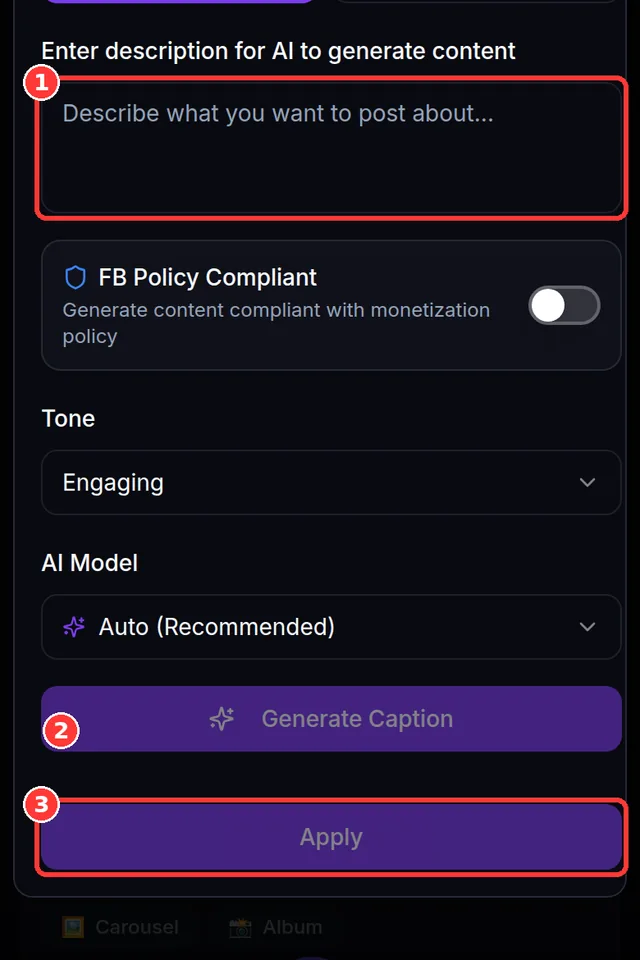
- Generate (Sparkles button) in the content header opens the AI dialog. Switch between Caption and Hashtags, add an optional description of your post, then Generate. Apply, or Regenerate for another take.
- Tone picker: Engaging (default), Professional, Humorous, Casual, or Inspirational.
- AI Model picker: leave it on Auto (recommended) and the app chooses and falls back across your available providers, or pick a specific model.
- Title (wand button) next to the title field writes a YouTube-ready title from your content — a quick, separate action from the main dialog.
The AI respects each platform's rules and your selected platforms while it writes, so a caption fits where it's going.
Facebook-policy-safe mode
Turn on the FB Policy Compliant switch (shield icon) in the AI dialog to have the caption rewritten to comply with Facebook's monetization policies — it avoids engagement-bait ("like & share"), risky topics, and keeps an all-audiences tone. Choose 🇲🇲 Myanmar or 🇺🇸 English for the output language; for videos it also produces a compliant YouTube title.
Expected result
You have an AI key added and tested, and the Generate/Title buttons produce captions, hashtags and titles you can apply to your post with one tap — at no credit cost.
Common mistakes
- Expecting AI to work without a key — you must add your own; the buttons will prompt you.
- Thinking AI costs credits — it never does, on any plan.
- Pasting an invalid or expired key — the test-on-save catches it; re-check it at the provider.
- Generating a title from the AI dialog — the dialog does Caption/Hashtags; use the wand button for titles.
Troubleshooting (quick table)
| You see… | Why | Do this |
|---|---|---|
| No AI API key configured. Add your key in Settings. / "Add an AI key to generate content" | No key added yet | Settings → AI Keys → add a Gemini/OpenAI/DeepSeek key |
| All AI models rate limited. Please try again later. | Your provider is temporarily rate-limiting | Wait a moment and retry; Auto mode already tries alternatives |
| The key won't save | It's invalid or the provider rejected it | Re-copy the key from the provider; check it hasn't expired |
| "Model switched automatically" note | Auto mode fell back to another model after a rate limit | Nothing — it's working around the limit for you |
📱 Mobile note: the AI dialog and buttons work the same on mobile; add your key once in Settings and it's available everywhere.
Set posts to publish at a future time, use the calendar, and learn what happens to scheduled posts when you hit a limit.