Scheduling
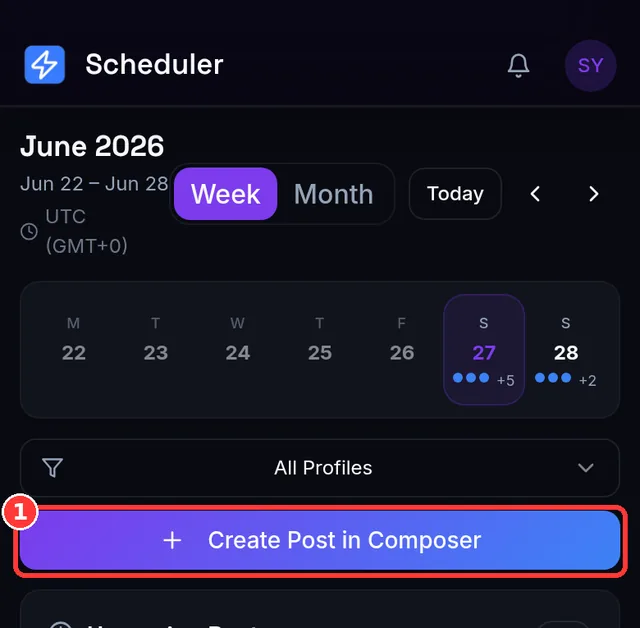
Schedule a post
- Build your post in the composer as usual (Lesson 7).
- Instead of Publish, choose Schedule and pick a date and time.
- Confirm. The post is saved as Scheduled and appears on the Scheduler page.
The time must be in the future — a past time is rejected with Scheduled time must be in the future.
/schedule command uses a fixed Thai time (UTC+7), not your local time (Lesson 12). The web app uses your local time.The Scheduler page
Open Scheduler to see everything you've queued, as a list and on a calendar. From here you can:
- Reschedule — open the reschedule dialog to pick a new date/time (with minute precision).
- Drag to reschedule — on a computer, drag a post card onto a calendar day to move it there. This is desktop-only (it uses drag-and-drop). Dropping onto a past day is refused — Can't reschedule into the past — and if the time today has already passed you'll see That time today has already passed — use Reschedule to pick a later time.
- Edit in Composer — change the content; saving keeps the post scheduled at its original time so it isn't accidentally un-scheduled.
- Publish Now — send a scheduled post immediately instead of waiting.
- Delete — remove it from the queue.
⏱ What happens at a limit — posts wait, they don't fail
How scheduled posts run
The app checks for due posts about once a minute and publishes them then — so a post set for 18:00 goes out within a minute of 18:00, not to the exact second. Results appear on the Posts page just like an immediate publish, and the publish result is sent to your Telegram notifications if you have them on.
Expected result
Your post sits on the Scheduler calendar at your chosen local time and publishes automatically when it's due — with nothing more for you to do.
Common mistakes
- Scheduling in the wrong timezone — the dialog shows which zone it's using; double-check it's yours.
- Expecting the bot's
/scheduleto use your local time — it's fixed Thai time (Lesson 12). - Thinking a scheduled post failed at a limit — it's deferred to the reset; check the Scheduler.
- Trying to drag-reschedule on a phone — use the Reschedule dialog on mobile.
- Editing a scheduled post and worrying it un-schedules — saving keeps its time.
Troubleshooting (quick table)
| You see… | Why | Do this |
|---|---|---|
| Scheduled time must be in the future | You picked a past time | Choose a later time |
| Can't reschedule into the past | Dragged a post onto a past day | Drop it on today or later |
| A scheduled post moved to next month / tomorrow | You were at a credit / daily limit — it deferred | Nothing needed; it publishes at reset (or upgrade — Lesson 2) |
| A scheduled post published a minute "late" | The scheduler checks about once a minute | Normal; schedule a minute early if timing is critical |
| A scheduled post failed | Channel/token/platform issue at publish time | Open results for the reason; Lessons 14 & 18.1 |
📱 Mobile note: scheduling and the Scheduler list work fully on mobile; drag-to-reschedule is the one desktop-only convenience — use the Reschedule dialog on a phone.
Post to every platform just by messaging your bot — with its commands, its fixed Thai-time scheduling, and an important warning about groups.