Your first post
Before you start
- At least one connected channel (Lessons 3–5).
- Your media ready if you're posting a photo or video — and remember Expectation 2 from Lesson 0: keep your originals, the app removes published media a few minutes after success.
The composer at a glance
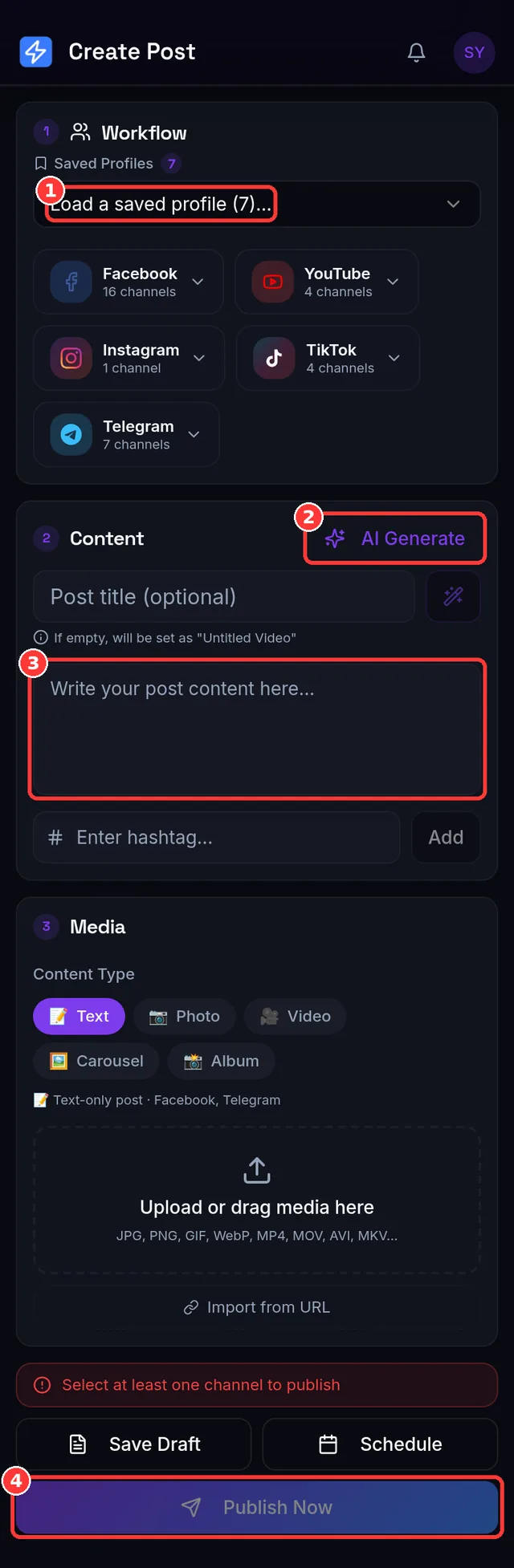
Tap Create (the composer). It has three parts you'll move through:
- Channels — where the post goes.
- Content — your caption/text, and (for long YouTube videos) a title.
- Media — the photo(s) or video you attach.
Step 1 — Pick where it goes
Either load a Publishing Profile (Lesson 6) to select your usual channels instantly, or tap channels by hand. Choose All Channels in the picker to hand-pick for a one-off.
Step 2 — Write your caption
- Type your text once — it's used across every selected platform.
- The character counter shows the most restrictive limit among your selected platforms, so you never overshoot the tightest one. When more than one platform is selected, per-platform "left" chips appear too.
| Platform | TikTok | YouTube | Telegram | ||
|---|---|---|---|---|---|
| Caption limit | 63,206 | 2,200 | 2,200 | 5,000 | 4,096 |
Add hashtags in the hashtag field; your favourites and recent tags appear as quick chips.
Step 3 — Add media
- Upload a photo or video (up to 1 GB — details and format rules in Lesson 8), Import from URL (Lesson 9), or generate a caption with AI (Lesson 10).
- While a file is uploading, Publish and Schedule are locked on purpose — you'll see Uploading media — publishing unlocks when the upload finishes. This prevents a post going out without its media.
Compatibility & smart-skip — the one idea to understand
Platforms accept different things, so the composer checks your post against each selected channel as you build it and handles mismatches for you:
- YouTube and TikTok need a video. Instagram needs media (photo or video). Facebook and Telegram accept text alone.
- If some selected channels can't take your post, they're skipped (not failed) and you're told up front, e.g. YouTube, TikTok will be skipped (they need a video). This post will go to Facebook, Instagram. Skipped channels cost no credits.
- If none of your selected channels can publish it — say a text-only post to YouTube + TikTok only — Publish is blocked with None of the selected channels can publish this post. Add a video, or include Facebook/Telegram.
If you selected TikTok
TikTok requires a one-tap content declaration before publishing — tick the box shown above the Publish button. Until you do, Publish stays disabled with Confirm the TikTok content declaration above to publish. TikTok's per-post options (privacy, comments, etc.) also live here; the defaults are fine for a first post.
Step 4 — Publish now (or schedule)
- Publish now: tap Publish. A confirmation dialog lists the exact channels — Your post will be published immediately to the channels below. This cannot be undone. — and the app checks you have enough credits (1 per channel it will actually publish to; Lesson 2). Confirm, and it publishes.
- Schedule: pick a future time instead — covered fully in Lesson 11.
Reading your results
Publishing shows a live results view, and every post also appears on the Posts page with a status:
| Status | What it means |
|---|---|
| Published | Every channel that was attempted succeeded. |
| Publishing… | At least one platform is still finishing in the background (common for Reels/videos and TikTok). |
| Partially failed | Some channels succeeded, some failed. The failed ones can be retried on their own. |
| Failed | No channel succeeded. Open the results to see why, per channel. |
| In review | A new-user or flagged post is being checked before it goes live (see below). |
| Scheduled / Draft | Waiting for its time, or saved but not sent. |
Each channel shows its own outcome, with links to View/Share the live post. On a Partially failed or Failed post, use Retry Failed — it re-attempts only the channels that failed, and never re-charges or duplicates the ones that already succeeded.
Expected result
Your post is live on the platforms you chose, visible on the Posts page as Published (or Publishing… briefly for videos/Reels), with per-channel links to view it.
Common mistakes
- Publishing before the upload finishes — the button is locked until it's done; wait for it.
- Selecting YouTube/TikTok for a photo or text post — they'll be skipped (they need video).
- Assuming a skipped channel failed — skipped is deliberate and free.
- Deleting your original file right after posting — the app doesn't keep a copy.
- Forgetting the TikTok declaration — Publish stays disabled until you tick it.
Troubleshooting (quick table)
| You see… | Why | Do this |
|---|---|---|
| None of the selected channels can publish this post… | Content doesn't fit any selected platform | Add a video/photo, or include Facebook/Telegram |
| Publishing to N channel(s) needs N credit(s), but you have R left this month… | Not enough credits | Deselect channels, wait for reset, or upgrade (Lesson 2) |
| Your post was rejected: … adult or NSFW content… | The media failed our content scan | Use different media; this can't be self-overridden |
| Status stuck on Publishing… | A video/Reel/TikTok is finishing in the background | Give it a few minutes; it resolves to Published or Partial |
| A channel failed | Platform-specific reason (token, permission, rate limit…) | Open results for the exact reason; see Lesson 18.1 |
📱 Mobile note: the composer is fully mobile; the Publish button and its status hints sit at the bottom, above the nav bar.
The real size and format limits, how videos are processed and auto-formatted (Reel/Short/trim), and the media-cleanup rule in full.