Connect your Telegram bot
What you'll create
A Telegram bot is a free automated account you make in one minute via Telegram's official @BotFather. You'll then add it to one chat — a channel, a group, or even your own private chat with the bot — and that chat becomes the one the app listens to.
Step 1 — Create the bot & get its token
- In Telegram, open @BotFather (the app's dialog links straight to it) and send
/newbot. - Follow the prompts to name your bot. BotFather replies with a token — a long string like
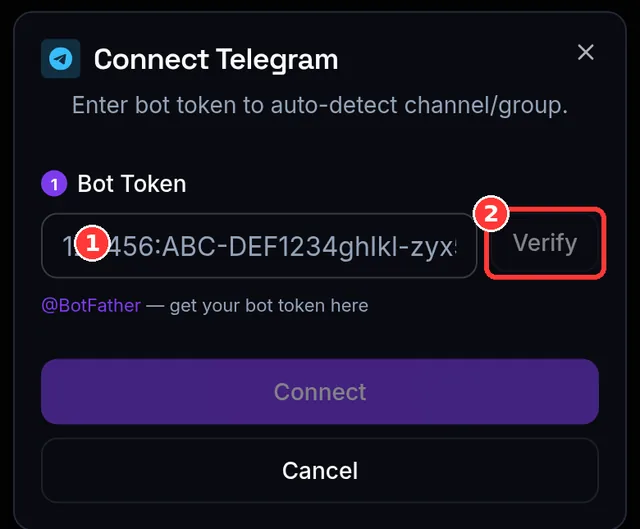
7973278005:AAF…. Keep it private; it's the bot's password. - Back in SocialAutoUpload, open Channels → Connect on Telegram, and paste the token into Step 1. It's verified automatically (or press Verify); on success you'll see your bot's
@username.
Step 2 — Add the bot to your chat & scan
- Add your bot as an Admin in the channel or group you want to publish to. (To publish from your own private chat instead, just start a chat with the bot — no admin step needed.)
- Post any message in that chat so the bot can see it.
- Press Scan. The app lists the chats your bot can see; tap the one you want.
If Scan finds nothing, the bot either hasn't been added to the chat yet, or no message has been posted since you added it — do both, then scan again. You can also type the chat's @username or numeric ID manually.
Step 3 — Link a Publishing Profile
The last step is required: choose the Publishing Profile whose channels this bot should publish to. (A profile is just a saved group of channels — Lesson 6 covers them; a default one already exists.) If you skip it you'll see:
Please select a Publishing Profile for this bot.
Press Connect. On success the app confirms — ✅ Bot connected! Publish from the website, or by sending content directly to the bot (DM or group) — both work now. — and the bot starts listening immediately. No admin approval, no waiting.
Who can publish through the bot — read this for groups
Disconnecting
Disconnecting from the channel's menu removes the bot's webhook from Telegram (it stops listening), deletes the channel, and removes it from any Publishing Profiles that used it — the same clean-up as any other channel.
Expected result
Your Telegram channel appears on the Channels page, linked to a profile (a small badge shows which one). Send it a photo with a caption and it publishes — that's Lesson 12.
Common mistakes
- Entering the bot's own @username as the chat — the app blocks this: "…" is your Bot's username. Add the bot as Admin to a channel/group and enter that channel's @username instead.
- Scanning before posting a message in the chat — the bot needs to have "seen" the chat first.
- Trying to reuse one bot for two chats — create a second bot instead (see below).
- Forgetting to link a profile — Step 3 is required.
Troubleshooting (quick table)
| You see… | Why | Do this |
|---|---|---|
| This bot (@x) is already used by "…". Each profile needs its own bot. | You already connected this bot elsewhere | Create a new bot in @BotFather for the second chat |
| This bot (@x) is already connected to another account. | The bot belongs to a different account | Create your own bot in @BotFather |
| Scan shows no chats | Bot not added, or no message since adding | Add the bot as Admin, post a message, scan again |
| Two similar chats in the scan | Group was upgraded to a supergroup | Pick the Supergroup |
| Chat not found on connect | Wrong @username / ID, or bot not a member | Confirm the bot is Admin and the handle/ID is right |
Posting problems (once connected) are covered in Lesson 12; deeper issues in Lesson 18.1.
📱 Mobile note: this whole flow is designed for mobile — you'll switch between the Telegram app (BotFather, adding the bot) and SocialAutoUpload a couple of times.
You've connected channels; now learn to save them into reusable sets so you're not re-picking them for every post.