Connect YouTube & TikTok
Connect YouTube
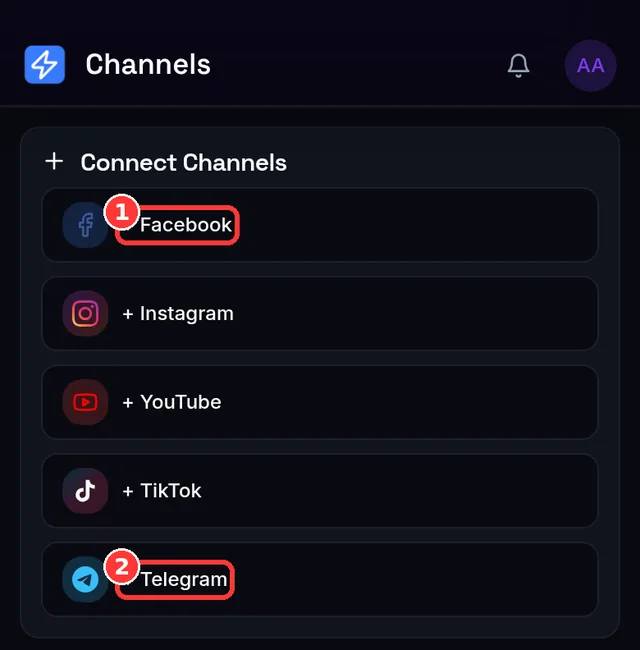
- On Channels, choose Connect on YouTube.
- Sign in with the Google account that owns your channel, and approve all four permissions on the consent screen — uploading, managing, reading your channel, and reading analytics.
- Google may ask you to confirm consent even if you've signed in before. That's intentional: the app needs a lasting "refresh" permission so it can keep publishing for you without asking you to sign in again every hour.
- You're back on Channels with your YouTube channel connected — thumbnail, name and all.
What you can publish: videos and Shorts. A video 60 seconds or shorter is published as a Short automatically (more in Lesson 8). A title is required — if you leave it blank the app fills one in for you.
Connect TikTok
- On Channels, choose Connect on TikTok and authorize the app in the TikTok window.
- You're returned to Channels with your TikTok account connected.
What you can publish: video only — TikTok doesn't accept photo or text posts through publishing tools. Every TikTok post also needs a one-tap content declaration in the composer; you'll simply tick a box before publishing (details in Lesson 7). Until you tick it, the composer shows: Confirm the TikTok content declaration above to publish.
video.list) that older connections may not have. If your TikTok links never resolve, just disconnect and reconnect the channel once to grant it — a one-time step.Staying connected
- YouTube renews automatically using the refresh permission you granted; you normally never touch it again.
- TikTok access is shorter-lived and rotates often, but the app renews it in the background too.
- If either platform ever needs a fresh sign-in, the channel shows a red "Needs reconnect" badge — one click on Connect restores it, with your posts and settings intact (Lesson 14 covers channel health in depth).
Expected result
Your Channels page now lists your YouTube channel and TikTok account as active, alongside any Facebook/Instagram channels from Lesson 3. You're ready to publish — Lesson 7.
Common mistakes
- Unticking a Google permission on the consent screen — YouTube publishing needs all four; the connection won't work without them.
- Expecting to post a photo or text to TikTok — it's video-only.
- Reporting a "missing" TikTok link too soon — give it a minute or two; it resolves on its own.
- Connecting the wrong Google account — the app takes the first channel on whichever account you pick, so choose carefully.
Troubleshooting (quick table)
| You see… | Why | Do this |
|---|---|---|
| No YouTube channel found. Please create a YouTube channel first. | The Google account has no YouTube channel yet | Create one on YouTube, then Connect again |
| A post fails with YouTube authentication expired. Please reconnect your account… | Google revoked the token (password/permission change) | Reconnect the YouTube channel |
| TikTok: You have reached your posting limit. Please try again later. | TikTok's own per-account daily cap is reached | Wait and try later — it's a TikTok limit, not ours |
| TikTok link never appears | Older connection without the link permission | Disconnect and reconnect the TikTok channel once |
| A post is skipped for YouTube/TikTok | The post had no video (both are video-only) | Attach a video, or don't select these channels (Lesson 7) |
More publish-time failures are covered in Lesson 18.1.
📱 Mobile note: both sign-ins open in your browser and may hop through the Google or TikTok app — you'll land back on Channels when done.
A little different from the others: you'll create a free bot and connect it to one chat, so you can publish just by messaging it.