SocialAutoUpload User Guide · Volume 3 — Channels & Platform Setup · Lesson 3
Connect Facebook & Instagram
Purpose
One sign-in unlocks both platforms: a single Facebook connection brings in all your Facebook Pages and every Instagram account linked to them, ready to publish. Along the way you'll learn the one rule — your role on the Page — that prevents the most common publishing failure we see.
Before you start — the two Meta requirements
- A Facebook Page. Publishing goes to Pages, not to your personal profile. No Page yet? Create one first at
facebook.com/pages/create— it takes two minutes. - For Instagram: a Business or Creator account, linked to that Page. This is Meta's rule for all publishing tools: "Meta Graph API only supports Business or Creator accounts. Personal Instagram accounts are not supported." (You can connect Facebook alone first and add Instagram later.)
🔒 The Page-role rule — read this even if you skip everything else
Your personal Facebook account must hold a role on the Page — admin, editor, or moderator. If that role is ever removed (a Page owner demotes you, an agency client revokes access), publishing stops with the platform error:
The user must be an administrator, editor, or moderator of the Page.
This is the single most common publishing failure among our users — and the fix is never inside this app: get your Page role restored, then publish again (reconnect the channel if it still fails).Connecting — 4 steps
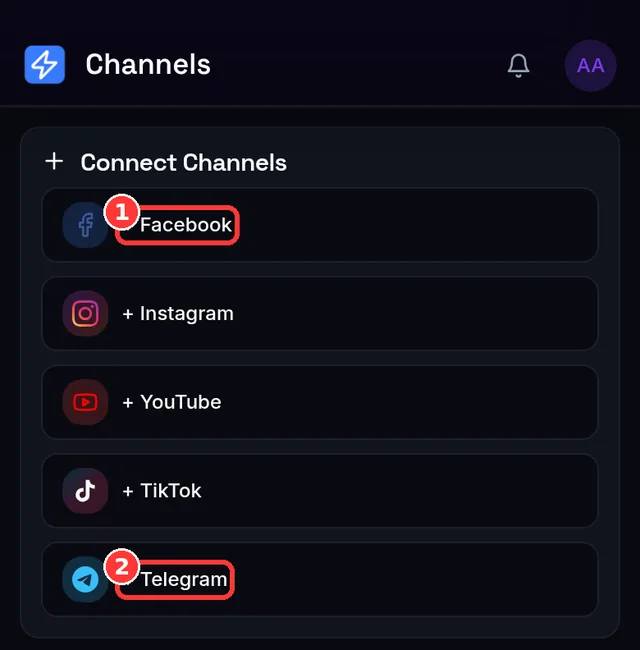
- Open Channels and choose Connect on Facebook (or Instagram — either button runs the same combined flow).
- Sign in to Facebook when the Meta window opens, and pick the Pages you want to allow.
- Leave every permission ticked. Each one has a job: listing your Pages, publishing to Pages, publishing to Instagram, and reading Page info. If you untick the Instagram-publishing permission, the app notices and sends you back through the dialog to grant it — saving you a broken connection later.
- You're returned to Channels. Every allowed Page appears as a Facebook channel, and every Instagram Business/Creator account linked to those Pages appears as its own Instagram channel — avatars, names and all.
💡 One connect, many channels
Each Page and each Instagram account is a separate channel and counts separately toward your plan's channel allowance (Free: 2 — see Lesson 2). Manage several Pages? A paid plan removes the cap, and reconnecting channels you already own never counts against it.Instagram didn't show up?
Then Facebook connected fine, but no Instagram account is linked to your Page yet. You'll see exactly this message:
Facebook Pages connected. To add Instagram: open Instagram app → Settings → Account → Linked accounts → Facebook → select one of your Pages, then reconnect here.
- In the Instagram app, make sure your account is a Professional account (Business or Creator) — Instagram's own settings offer the switch, free.
- Still in Instagram, link the account to your Facebook Page (not just your profile), per the path in the message above.
- Back in SocialAutoUpload, hit Connect again — the Instagram channel appears this time.
Staying connected — what happens after today
- Meta issues access that lasts about 60 days, and the app renews it automatically in the background — normally you never think about it again.
- If Meta ever demands a fresh sign-in (password change, permission change, security review), the channel shows a red "Needs reconnect" badge. Reconnecting is the same Connect button — one click, and your posts and settings are untouched.
- Disconnecting is under the channel's menu; you'll be asked to confirm — Are you sure you want to disconnect "…"? You will need to reconnect via OAuth. — and the channel is also removed from any Publishing Profiles that used it.
Expected result
Your Channels page shows your Facebook Page(s) and Instagram account(s) as active channels with their real names and profile photos. They're ready for your first post — Lesson 7.
Common mistakes
- Trying to connect a personal Instagram account — it can never work; switch it to Professional and link a Page first.
- Expecting posts on your personal Facebook profile — publishing goes to Pages only.
- Unticking permissions in the Meta dialog "to be safe" — the connection can't publish without them; the app will re-ask.
- An agency handing over a Page and removing your role afterwards — publishing breaks with the Page-role error above.
Troubleshooting (quick table)
| You see… | Why | Do this |
|---|---|---|
| You need to create a Facebook Page first. Go to facebook.com/pages/create | Your Facebook account has no Page | Create a Page, then Connect again |
| Facebook connected, Instagram missing | No Business/Creator IG linked to the Page | Follow the 3 steps in "Instagram didn't show up?" |
| A post fails with The user must be an administrator, editor, or moderator of the Page | Your role on the Page was removed or downgraded | Get the role restored on Facebook, then retry the post |
| A post fails with User access is restricted | Meta has restricted the Instagram/Facebook account itself | Resolve the restriction inside the platform's app; not fixable here |
| Your free plan allows 2 connected account(s)… | Channel allowance reached | Disconnect one, or upgrade (Lesson 2 §6) |
More publish-time failures are covered in Lesson 18.1.
📱 Mobile note: the Meta sign-in opens in your browser and may bounce through the Facebook app — that's normal; you'll land back on Channels when it's done.
Next: Lesson 4 — Connect YouTube & TikTok.
Two quicker connections: Google's consent screen, and TikTok's one-tap content declaration.
Two quicker connections: Google's consent screen, and TikTok's one-tap content declaration.